
What is Encryption?
Encryption is a method of preventing unauthorized access to electronic data. It is used to protect data on devices such as computers, laptops, cellphones, or USB sticks. It can also be used to protect data during transmission. For example, after you enter your credit card details to purchase something online, your computer automatically encrypts that data so that others cannot steal this information when it is transmitted over the internet.
Encryption is imperative for sending sensitive information, securing your documents, keeping your email private and, ultimately, it allows for peace of mind if a computer is misplaced, lost or stolen.

What Happens When I Encrypt My Devices?
Encryption is the process of scrambling information, making it unreadable to protect it from unauthorized access. When data is encrypted you need a key, usually a password, to make it readable again.
Encrypting your computer and mobile devices is one of the most important controls in securing your personal information and UBC’s data.
Why Should I Encrypt My Devices?
At UBC, we are regulated by the Freedom of Information and Protection of Privacy Act (FIPPA), which requires us to protect personal information from unauthorized collection, use, or disclosure.

In support of the law, UBC policy requires that all Devices—whether UBC-owned or personally-owned—used to access UBC Electronic Information and Systems be encrypted. For more information refer to the UBC Information Security Standard U5, Encryption Requirements.
Security breaches can cause significant time, money, and stress costs and harm the university's reputation. But if your device is misplaced, lost or stolen, encrypted data will be unreadable without a password.
Devices are replaceable; personal or private information is not.
Concerned about travelling with an encrypted mobile device? Learn about travelling with electronics.
All UBC managed devices provided for UBC faculty and staff are encrypted before being given to UBC employees. If you are using your own personal (non-UBC-supported) device to access UBC Electronic Information and Systems, then it is your responsibility to ensure that it is encrypted.
IMPORTANT: Encryption does not protect data when your device is unlocked. Always lock devices or log out before leaving them unattended.
Encryption Process Overview
An overview of the encryption process for common devices (laptop and desktop computers) and operating systems (Windows and Mac) is outlined below:
Step 1: Check if your computer has already been encrypted
If your computer is already encrypted, don't encrypt it again. To check if your computer has already been encrypted, follow the instructions on the UBC IT Knowledge Base.
Step 2: Back up your computer
Do not encrypt until you have backed up your computer! If you do not back up your computer and issues are encountered during the encryption process, you will risk losing your data.
- For instructions on how to back up your Windows device, visit the Microsoft Support Page.
- For instructions on how to back up your Mac device, visit the Apple Support Page.
Step 3: Enable encryption on your computer
This is a general overview of what you can expect when encrypting devices. For more detailed instructions on how to encrypt your device, view the box "How to Encrypt Your Own Device" below.
- Windows and Mac devices come with built-in encryption software (BitLocker for Windows, FileVault for Mac).
- Note: If BitLocker is not able to be turned on and you have an older device, check that your hardware meets Microsoft's BitLocker requirements.
- After turning on Encryption, you can continue using your computer normally right away. Encryption runs in the background and usually has little to no noticeable impact on performance, although performance impact depends on the age of the device.
- The full encryption process can take anywhere from a few hours to two weeks. You do not need to monitor or check on it.
- You may be prompted to restart your computer a few times. This is normal. Please follow the instructions on the screen.
- Restarting, sleeping, hibernating, and shutting down the computer generally has no impact on the encryption process.
Step 4: Save your encryption recovery key in a safe place
When data is encrypted, you need a password to access it. A recovery key is a backup code that can be used to access your data if you ever lose or forget your password. It is critical that you store your key in one, or preferably more than one, of the places outlined below:
Windows: Microsoft can store your recovery key securely on your behalf through your Microsoft account.
Mac: Apple can store your recovery key securely on your behalf through your iCloud account.
All Operating Systems: It is highly recommended that you save your recovery key to a safe place off of the PC which you are encrypting. The best option for securely storing your recovery key is in a Password Manager, but other options are available:
- Saving your recovery key to your password manager [Recommended] – You can use a password manager to store your recovery key. Some examples of popular password managers include Bitwarden, 1Password and KeePass. Do not save your recovery key in your internet browser passwords. Learn more about Password Managers.
- Saving your recovery key to a secure Cloud Storage Service – Store a copy of your recovery key in a safe place off of the PC, like a secure Cloud Storage Service which is only accessible to you. Some examples of Cloud Storage Services include iCloud, Dropbox, Google Drive, OneDrive and Box.
- Saving your recovery key to a secure hard drive – Store a copy of your recovery key in a safe place off of the PC, like a secure hard drive which is only accessible to you. Storing recovery keys on a hard drive may be higher risk as a hard drive could be prone to failure.
- Printing your encryption recovery key and locking it away - Print your encryption recovery key and put it in a safe or lockable cabinet which is always kept locked and secure.
Reminder: Even an encrypted device is vulnerable if it does not have proper password protection. Your encryption password should be unique and comply with the UBC password policy and UBC key escrow requirements (a method of storing passwords so they can be recovered if lost). You must also always lock or logout of a device before leaving it unattended.
How to Encrypt Your Own Device
If you are using your own personal (non-UBC-supported) device to access UBC Electronic Information and Systems, then it is your responsibility to ensure that it is encrypted in compliance with the UBC Information Security Standard U5, Encryption Requirements. To check your computer to see if it has been encrypted, follow the instructions on the UBC IT Knowledge Base.
Windows
If you have a Microsoft-based system we recommend you use the native Microsoft encryption tool BitLocker. Both Microsoft encryption features, Device Encryption and BitLocker Drive Encryption, meet the UBC Information Security Standards.
How to encrypt a Windows computer with BitLocker
What if I my Windows Operating System doesn't support BitLocker?
We recommend that you upgrade to a version of Windows that will support BitLocker. If this isn't an option, and the version of Windows on your personally owned computer does not support native BitLocker encryption, then the best route to encrypt your computer is to use VeraCrypt. VeraCrypt is a technical tool and it is very important to follow all of the following steps carefully:
How to encrypt a Windows computer with VeraCrypt
How do I know which Windows Operating System I have?
To find out which version of Windows your PC is running, press Windows logo key + R on your keyboard, type winver then press Enter.
Mac
For Mac OS based systems, we recommend you use the native Apple encryption tool FileVault.
Linux
Both VeraCrypt and dm-crypt/LUKS are common encryption options, allowing a user to encrypt either a full disk during installation or a new volume.
To ensure compliance with UBC Information and Security Standards, refer to Encrypting workstations using operating systems other than Microsoft Windows and Apple macOS (e.g., Linux).
Full Disk Encryption
Most modern versions of Linux offer full disk encryption as an option during installation. This is usually a straightforward step that involves checking a box and setting a security key. The exact steps will vary depending on which version of Linux you use. See the example for Ubuntu in Figure 1 below.
You must remember your password which unwraps the security key. It is isolated on your device, and UBC IT will not have access. You will be required to enter this password at every boot, and you will no longer be able to remotely reboot your system.
It is recommended that you save a copy of your security key (not password) to your personal network storage drive (UBC Home Drive - Vancouver; F: Drive - Okanagan), so that University IT Support Staff can assist you in the event of an incident.
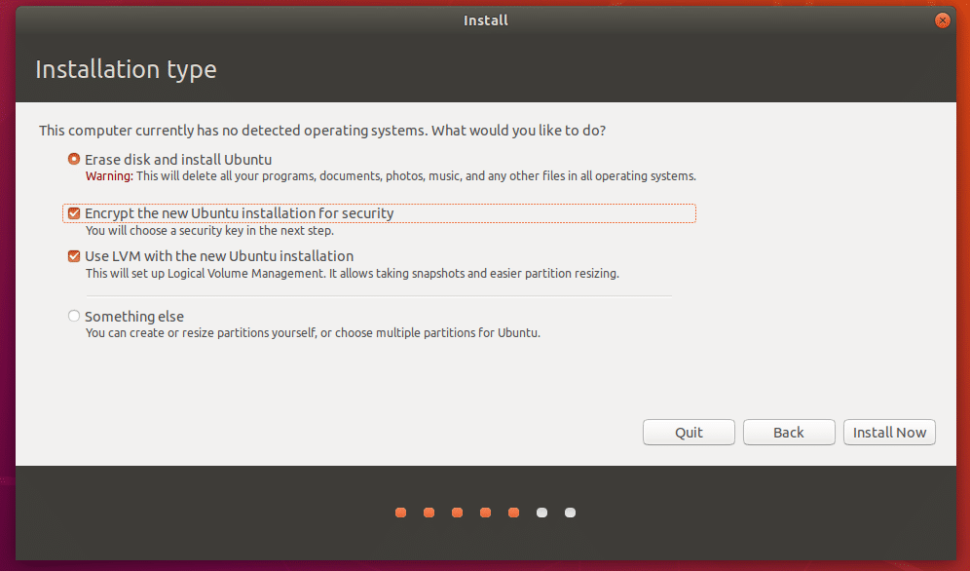
Important: If you do not know your password and you lose access to your security key, there is no way to access your data. See the options available to users to store their encryption recovery keys (security key) in the box above "Encryption Process Overview".
There is no easy way to encrypt a system that is already built. To set-up full disk encryption on devices that already have Linux installed, the only way is to backup all your data, reinstall Linux (with encryption enabled), reinstall all your applications and then restore your data.
Due to operability or performance constraints, this is not always viable. Please see the guidance from Information Security Standard U5, Encryption Requirements
Encrypting a partition or new volume
Native tools are available in common Linux desktops are available to encrypt a new volume or partition.
Online Guides
- Cryptsetup and LUKS - open-source disk encryption
- VeraCrypt (downloadable software packages and installation instructions)
- Securing Red Hat Enterprise Linux
- How to Encrypt a Drive on Ubuntu

Smartphones & Tablets
iPhone and iPads
How do I know if my device is encrypted?
iPhones and iPads are encrypted by default. However without a passcode or biometric lock enabled, the encrypted data remains accessible to anyone with the device.
How do I protect my data?
To ensure encryption is meaningful, turn on a passcode. This can be found under setting, usually in the “Touch ID & Passcode” or "Face ID & Passcode" submenu.
Android Phones and Tablets
How do I know if my device is encrypted?
Most Android devices running Android 6.0 or later have encryption enabled by default. To confirm your device is encrypted, check under Settings → Security or Settings → Privacy. The exact setting location varies by manufacturer.
How do I encrypt?
If your device is not encrypted, the option to enable encryption is usually found in the same menu where the encryption status is displayed.
How do I protect my data?
Without a passcode or biometric lock enabled, encrypted data remains accessible to anyone with the device. To ensure encryption is meaningful, enable a screen lock (PIN, pattern, or password). Setting location varies by manufacturer.
Mobile Storage Devices (e.g. memory and hard drives)
USB drives and other portable storage devices are easy to lose. Encrypting a drive scrambles its contents, making the data unreadable to anyone who doesn't have the password to unlock it.
How do I know if my device is encrypted?
Usually when a storage device has been encrypted, you will be prompted to enter a password each time you plug it into a computer.
How do I encrypt my mobile storage device?
UBC has also provided instructions on how to encrypt an external USB drive using BitLocker (Windows), VeraCrypt (Windows) and FileVault (Mac).
Can I encrypt individual files?
You can encrypt specific files and folders on USB sticks using freely available encryption tools such as 7zip.

Frequently Asked Questions
What happens if I lose my encryption recovery key?
In the event that you lose your encryption recovery key, UBC will not be able to recover encrypted data. It is critical that you store your key in one, or preferably more than one, of the places outlined in the box "Encryption Process Overview".
If I use my personally-owned computer to access my on-campus (work) computer via Remote Desk Protocol (RDP), am I required to encrypt my personally-owned computer?
As per Information Security Standard U5, Encryption Requirements, encryption requirements apply to all Devices, whether UBC-owned or personally-owned, that are used to access UBC Electronic Information and Systems.
However, if a personally-owned desktop or laptop computer is ONLY accessing UBC Electronic Information and Systems through Remote Desktop Protocol (RDP) sessions then encryption is not required at this time, but is recommended.
- Connecting via VPN - encryption is required
- Connecting via VPN + RDP - encryption is recommended but not required at this time
Are there any exemptions to the encryption requirements for machines that are not internet-facing?
Includes private or non-routed networks in labs.
According to Information Security Standard U5, Encryption Requirements, there is no exemption to the requirements. However, local IT Support Staff should focus on the highest risk and highest volume devices first, before tackling more complex use cases. The Cybersecurity team is available to help with more complex use cases.